
How to create YouTube channel art
YouTube channel art is essentially YouTube’s version of the Facebook cover photo. Channel art features in a prominent place on your YouTube channel, which means it’s absolutely vital for any YouTube channel to use customized art to share your personality or more about your brand with your audience.
Here’s an example of Gary Vaynerchuk’s YouTube channel art:
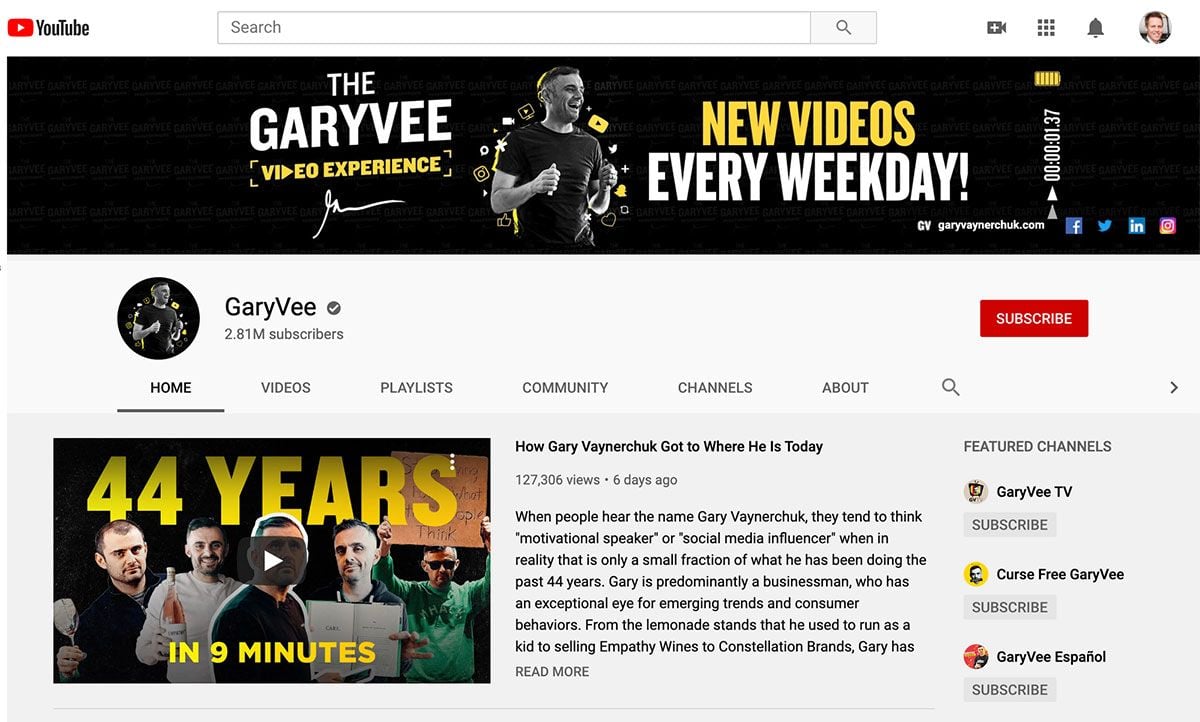
Gary is well-known for his public speaking at conferences and for sharing all he knows about marketing and building businesses with his audience. This is reflected in his cover photo, which displays Gary in mid-flow giving a presentation. The channel art also serves as a promotion tool for The Gary Vee Video Experience and reinforces the cadence of new videos on Mondays through Fridays.
Here are a couple other examples for inspiration:
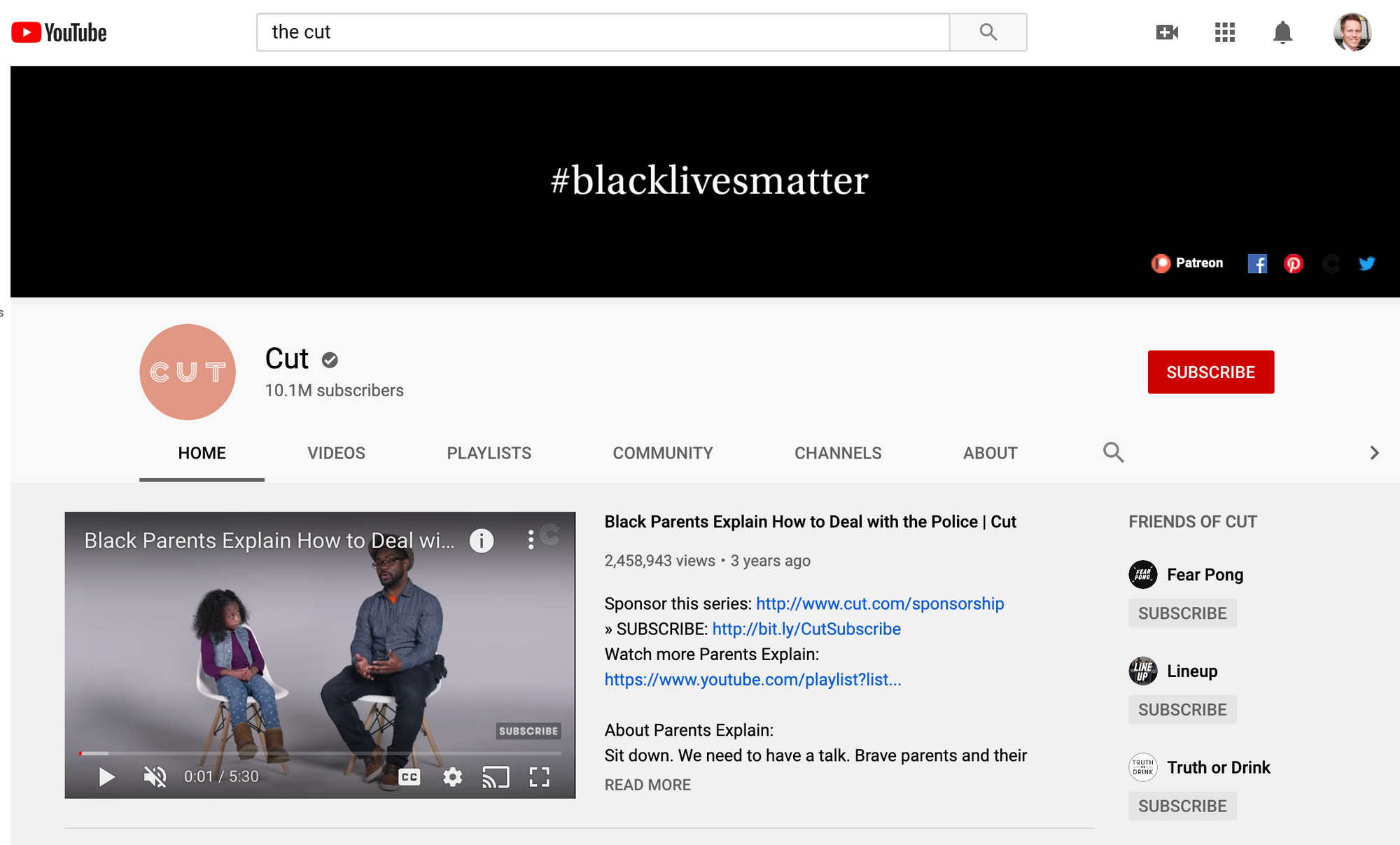
The Cut uses its channel art to advocate for Black Lives Matter.
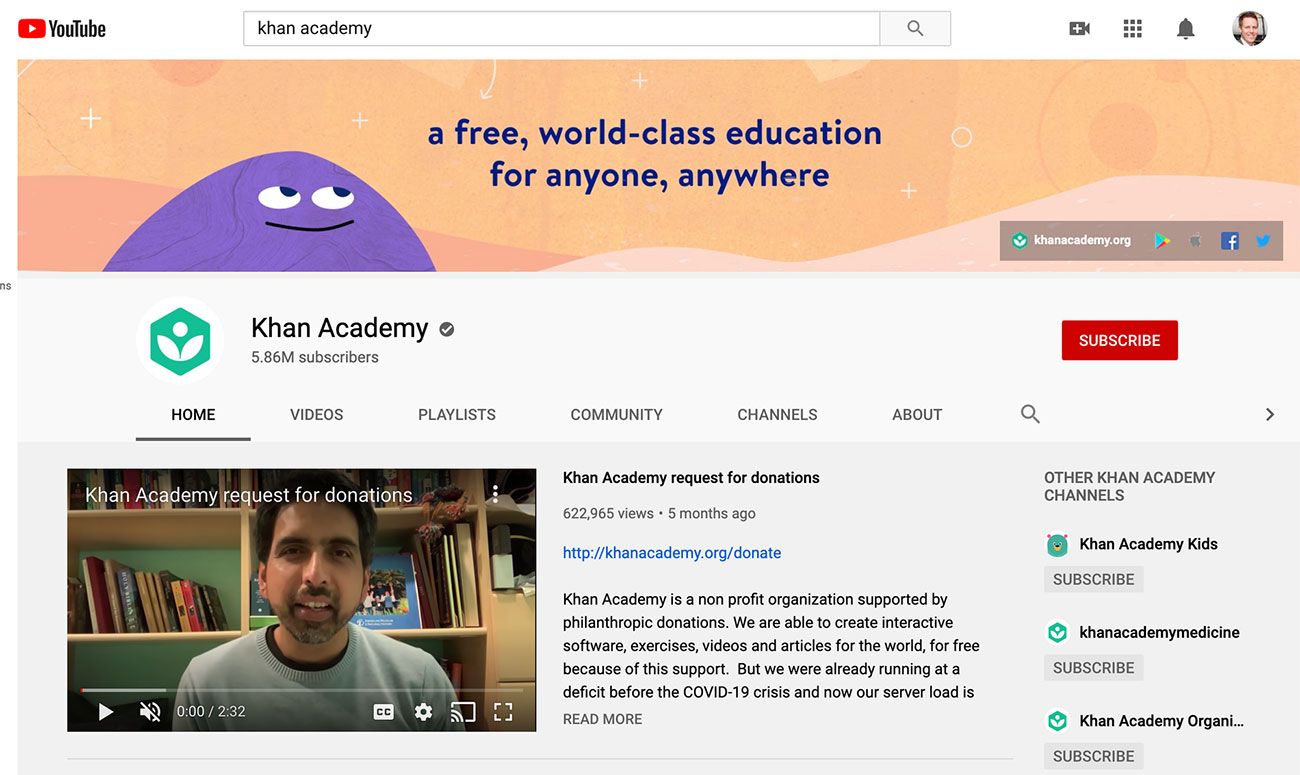
Khan Academy uses its channel art to reinforce its brand, mentioning its tagline and showing off some of the fun characters and brand design.
Ok, now that you have some options in mind for what your channel art could be, here is what you need to know to create your optimal YouTube channel art ...
The perfect sizes for YouTube channel art
The best place to start with your channel art is with an optimal image size that works across multiple devices. For the best results, YouTube recommends uploading a single 2560 x 1440 pixel image.
- Minimum width: 2048 X 1152 px. This is the “safe area”, where text and logos are guaranteed not to be cut off when displayed on different devices.
- Maximum width: 2560 X 423 px. This means that the “safe area” is always visible; the areas to each side of the channel art are visible depending on the viewer’s browser size.
- File size: 6MB or smaller recommended.
It's interesting to note that YouTube is available on a ton of different devices – from as small as an iPhone to as large as a 60-inch TV. On TVs, the channel art appears in the background, behind the content on your YouTube channel. On desktop and mobile devices, it appears as a banner across the top.
Tools and tips for creating YouTube channel art
In the past, YouTube has supplied a Channel Art Template to help you figure out the perfect layout for your channel art and how it’ll look across platforms. Here's a preview of the template:
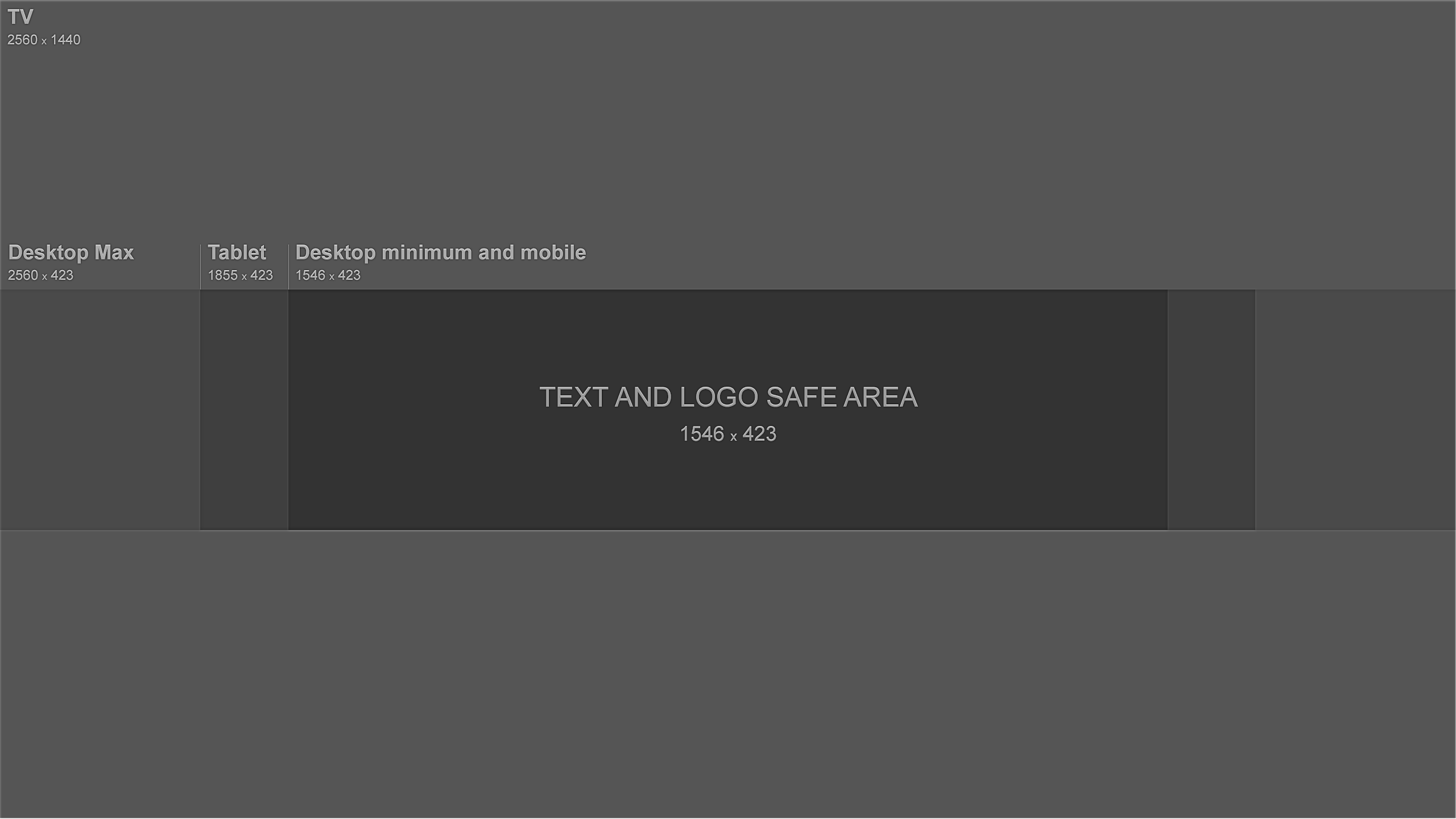
You can absolutely use the ideal dimensions that we mentioned above in order to create your channel art from scratch using a tool like Figma or Photoshop.
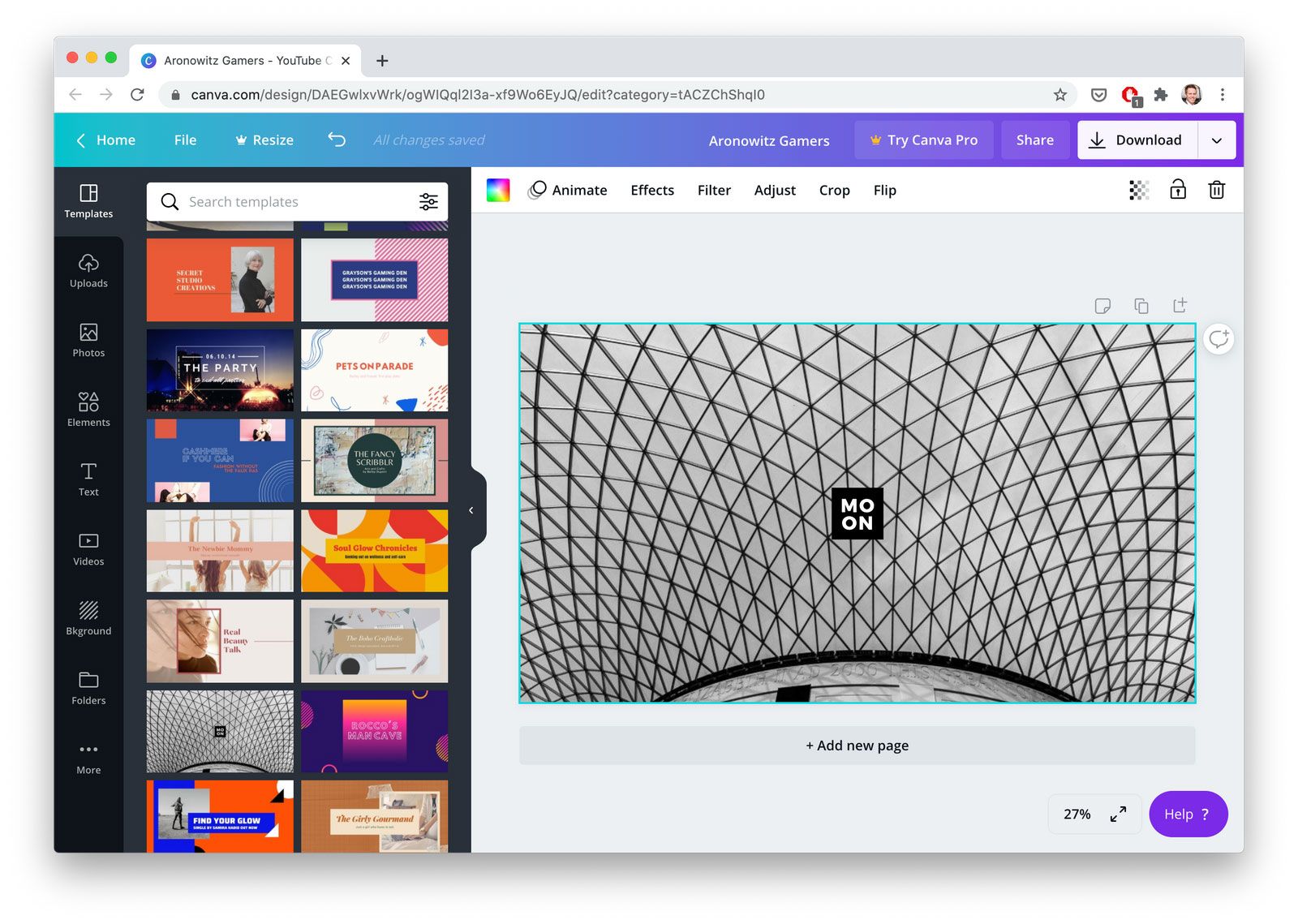
Nowadays, the easiest way to get up and running with your channel art is to hop into a free image creator like Canva or Adobe Spark. These tools have ready-to-go YouTube templates you can quickly customize to your liking.
Here is an example of a channel art template within Canva:
2 top tips for YouTube channel art
1. Ensure any text and logos are within the "safe" area
The text and logo safe area is the 1546 x 423 pixel space at the center of the YouTube channel art template (see the template above). This is the area that will be displayed on YouTube when your channel is viewed on desktop screens.
Traditionally, the parts outside the safe area run the risk of being covered or illegible because of overlaid social links or profile pictures.
Be careful to ensure any important information such as branding, text, taglines, and key images are within the safe space so that they're always displayed as part of your channel art across every device.
2. Consider your channel links
YouTube enables you to add links to your channel and these are displayed in the bottom right corner, overlaid on top of your channel art. For example, check the bottom right of the channel art below:
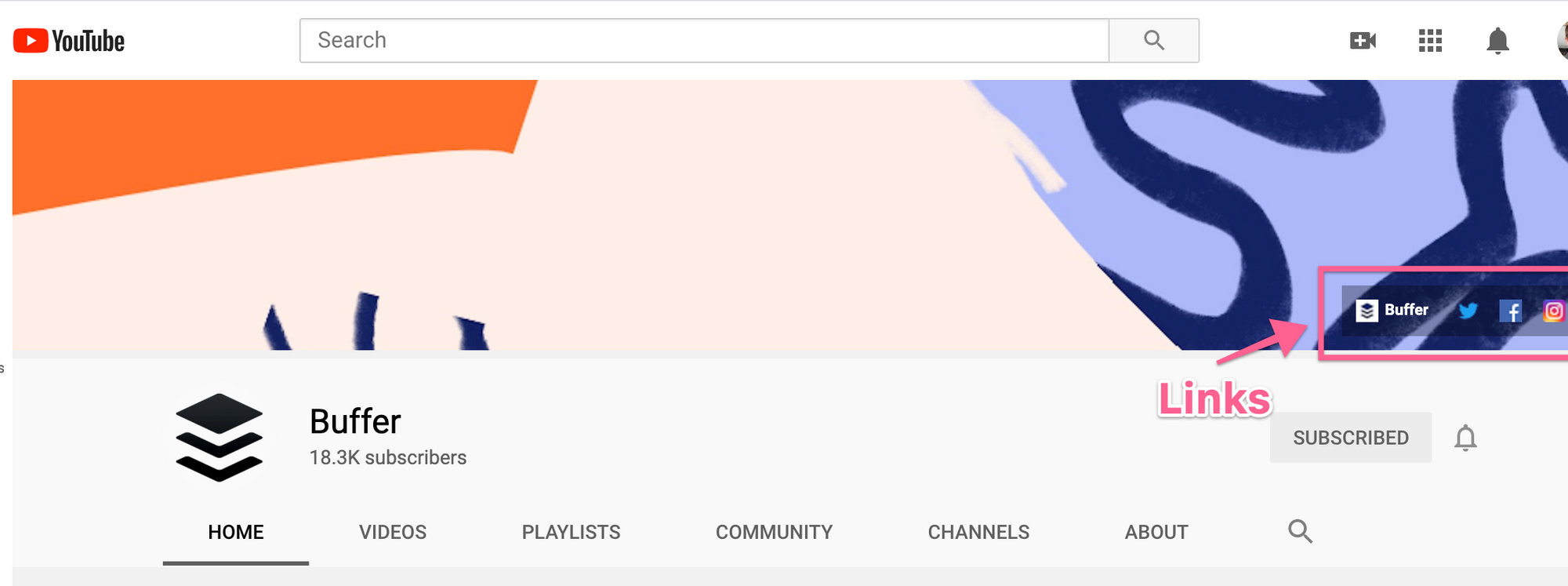
When creating your channel art, it’s important to think about the space these links take up and ensure you don’t have anything important (such as logos) occupying that space within your design.
Here is the Full Video for Creating a Gaming Channel Art Using Canva


No comments:
Post a Comment